

A workspace can support the spine by keeping the head balanced over the shoulders, the lower back gently supported, and the body free to change position throughout the day. A good setup does not need to be expensive or perfect; it needs to fit the person using it and make comfortable movement easier.
For residents of Lynbrook, many work areas are set up at kitchen tables, compact home offices, bedrooms, or shared family spaces. These arrangements can work well when the chair, screen, keyboard, lighting, and daily habits are adjusted thoughtfully.
What does a spine-friendly workspace look like?
A spine-friendly workspace allows the body to remain relaxed rather than forcing it into one rigid position. The feet should have stable support, the elbows should rest near the sides, and the computer screen should be high enough that the neck does not remain bent for long periods.
A useful starting position includes:
- Feet flat on the floor or supported by a footrest
- Knees level with or slightly lower than the hips
- Hips positioned toward the back of the chair
- Lower back supported by the chair or a small rolled towel
- Shoulders relaxed instead of lifted toward the ears
- Elbows close to the body and bent at roughly a right angle
- Wrists kept relatively straight while typing
- Eyes directed toward the upper portion of the screen
These guidelines are not a requirement to sit motionless. The spine generally tolerates variation better than prolonged strain in one position.
How high should a computer monitor be?
The top of the monitor should be near eye level, or slightly below it, so the head can remain balanced without repeated downward bending. The screen should also be close enough to read without leaning forward.
For many people, placing a monitor about an arm’s length away works as a starting point. The correct distance depends on screen size, vision, and text settings. Increasing the font size is often more helpful than moving the head closer to the screen.
A laptop creates a common compromise because its screen and keyboard are attached. Raising the laptop improves neck position but may force the wrists and elbows into an awkward angle. For work lasting more than short periods, a separate keyboard and mouse allow the screen to be raised while keeping the hands lower.
In a small home workspace, sturdy books or a stable stand may raise a screen safely. The support should not wobble, block ventilation, or create a risk of the device sliding.
Does the chair need to be expensive?
No. A chair should be stable, comfortable, and adjustable enough to support the user’s proportions. Price alone does not determine whether a chair is suitable.
Look for a sitting surface that allows the back to rest against the chair without pressing behind the knees. If the seat is too deep, a person may slide forward or round the lower back to reach the desk. A folded towel behind the lower back can sometimes improve support in a chair that lacks built-in lumbar shaping.
Armrests can be useful if they allow the shoulders to relax. They should not be so high that the shoulders are lifted or so wide that the elbows must move away from the body. If armrests prevent the chair from moving close enough to the desk, lowering or removing them may improve the overall position.
A dining chair or other household chair can be made more comfortable with a cushion, lumbar support, or footrest, provided these additions do not make the seat unstable.
How should the desk and keyboard be arranged?
The desk should allow the hands to reach the keyboard without leaning the upper body forward. The keyboard and mouse should be close enough that the elbows stay near the sides and the shoulders remain relaxed.
A keyboard that is too high may cause the wrists to bend upward and the shoulders to tense. A keyboard that is too low may encourage slumping. The forearms should be approximately level with the floor or angled slightly downward toward the hands.
The mouse should remain close to the keyboard. Reaching repeatedly to the side can place extra stress on the shoulder, upper back, and neck. If a person uses a numeric keypad frequently, positioning the mouse on the opposite side may reduce reaching, but only if that arrangement feels natural and does not create new discomfort.
Documents should be placed near the monitor rather than flat on the desk when frequent reading is required. A simple document holder can reduce repeated neck flexion.
How often should someone move during the workday?
Changing position every 20 to 30 minutes is a practical goal, although the exact timing can vary. Short movement breaks are often more useful than waiting until the back or neck becomes painful.
A brief reset can include:
- Standing while taking several slow breaths
- Walking to refill water
- Rolling the shoulders gently
- Looking across the room to relax the eyes
- Moving the ankles and bending the knees
- Performing a few comfortable hip or upper-back movements
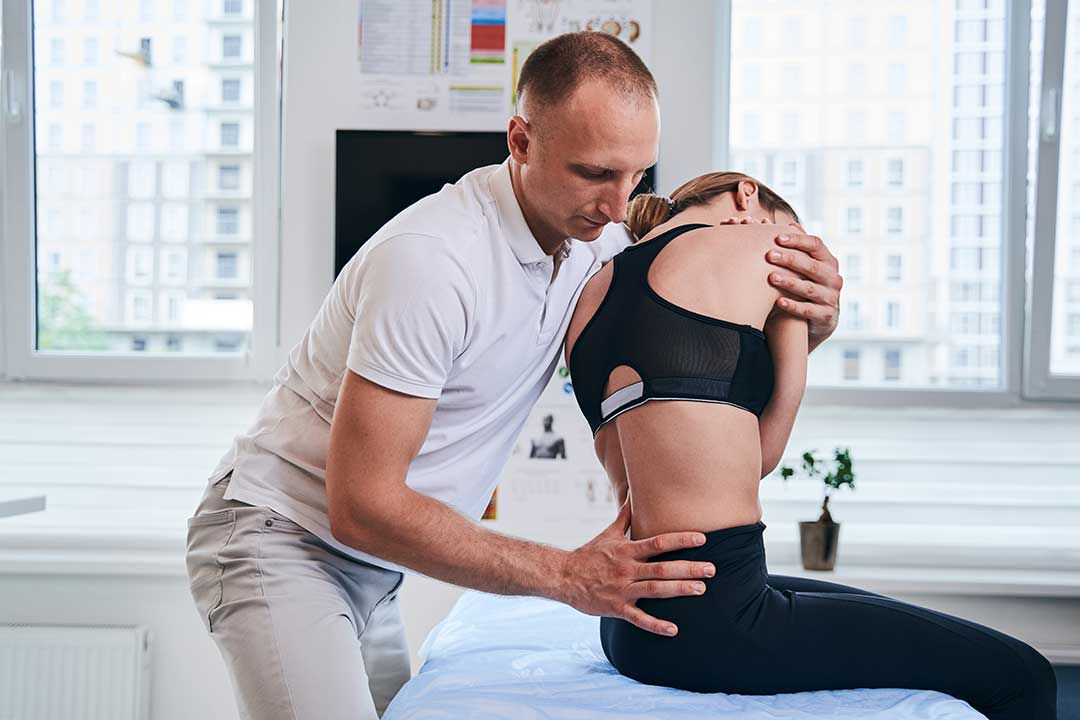
Movement does not need to be strenuous. Two or three minutes away from the workstation can interrupt prolonged sitting and reduce the tendency to stiffen into one posture.
For people working from home, routine tasks such as standing during a phone conversation, folding laundry between meetings, or walking through the home during breaks can add useful variety. During colder weather, including winter periods in Lynbrook, indoor movement breaks may be easier to maintain than outdoor walks during the workday.
Is standing all day better than sitting?
Standing all day is not automatically healthier for the spine. Remaining in one position for long periods, whether sitting or standing, can contribute to discomfort and fatigue.
A height-adjustable surface can allow alternating between sitting and standing. When standing, the monitor and keyboard should be raised together so the neck does not bend downward and the shoulders do not lift. Weight can shift gently from one foot to the other, but leaning heavily on the desk may create new strain.
Comfortable shoes or supportive floor padding may help people who stand for extended periods. The goal is regular position changes, not maintaining a rigid standing posture.
What household habits can affect workstation comfort?
The workspace is only part of the daily load on the spine. Carrying laundry, lifting children, doing home repairs, commuting, and spending long periods looking down at a phone can influence how the neck and back feel during computer work.
A few overlooked adjustments include:
- Keep frequently used items within easy reach.
- Avoid storing heavy objects low on the floor if they must be lifted often.
- Use both hands when carrying a larger load.
- Bring phones and tablets closer to eye level during extended use.
- Avoid working from a soft couch if it causes the pelvis to sink and the head to move forward.
- Keep walkways clear so movement breaks are easy and safe.
In homes with limited space, a dedicated workstation may not be possible. In that case, a temporary setup can still be improved by using a firm chair, raising the screen, supporting the feet, and returning the area to a neutral arrangement after use.
When is workspace discomfort a warning sign?
Mild stiffness that improves with movement may reflect prolonged positioning, but persistent, worsening, or unusual symptoms deserve attention. Seek timely medical evaluation for significant weakness, loss of coordination, numbness that spreads, severe pain after an injury, or changes in bladder or bowel control.
A workspace adjustment should not be used to explain away symptoms that continue despite reasonable changes. The purpose of ergonomic improvement is to reduce avoidable strain and make daily activities more comfortable, not to replace medical assessment when warning signs are present.
A spine-friendly workspace is built around support, visibility, relaxed reach, and regular movement. Even in a compact home or shared household area, small changes to screen height, chair support, foot position, and break habits can make computer work easier on the neck and back.
